
Fastest path
Check one visible job
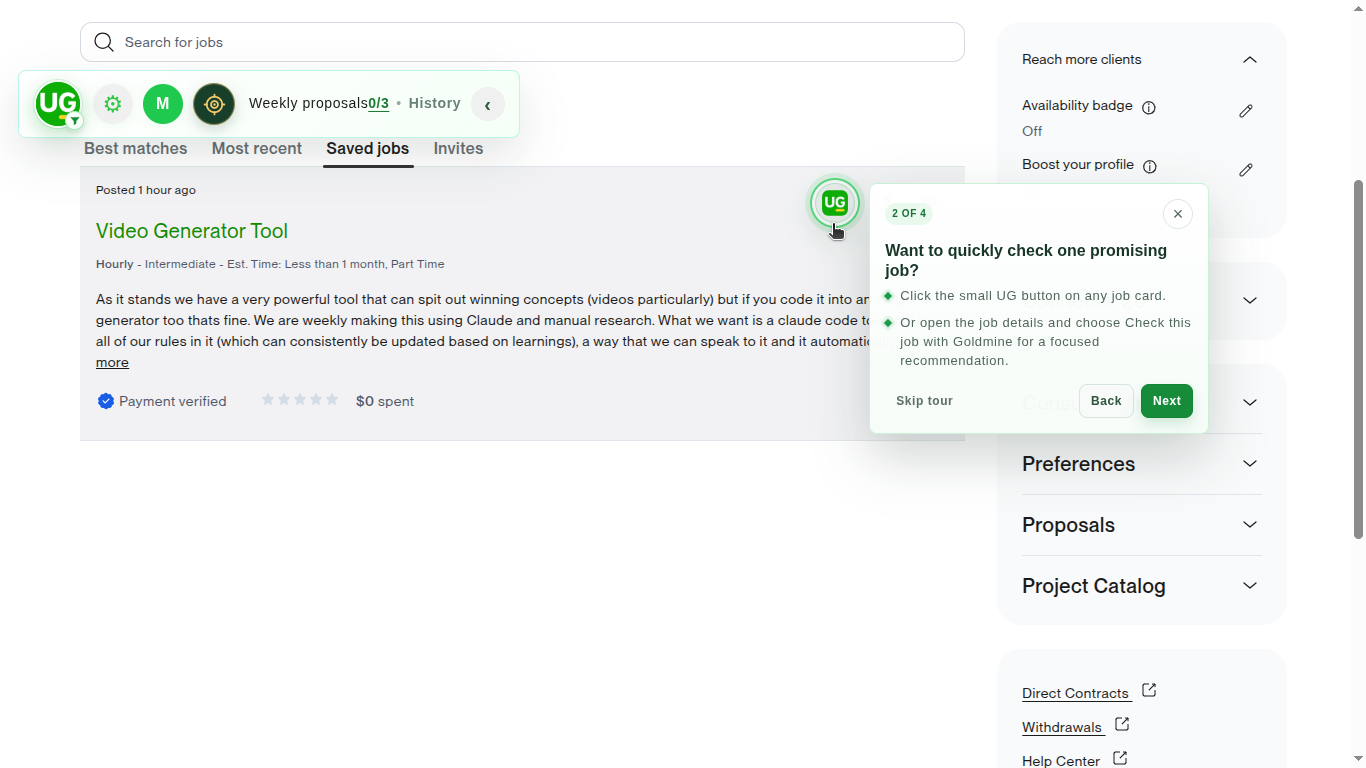
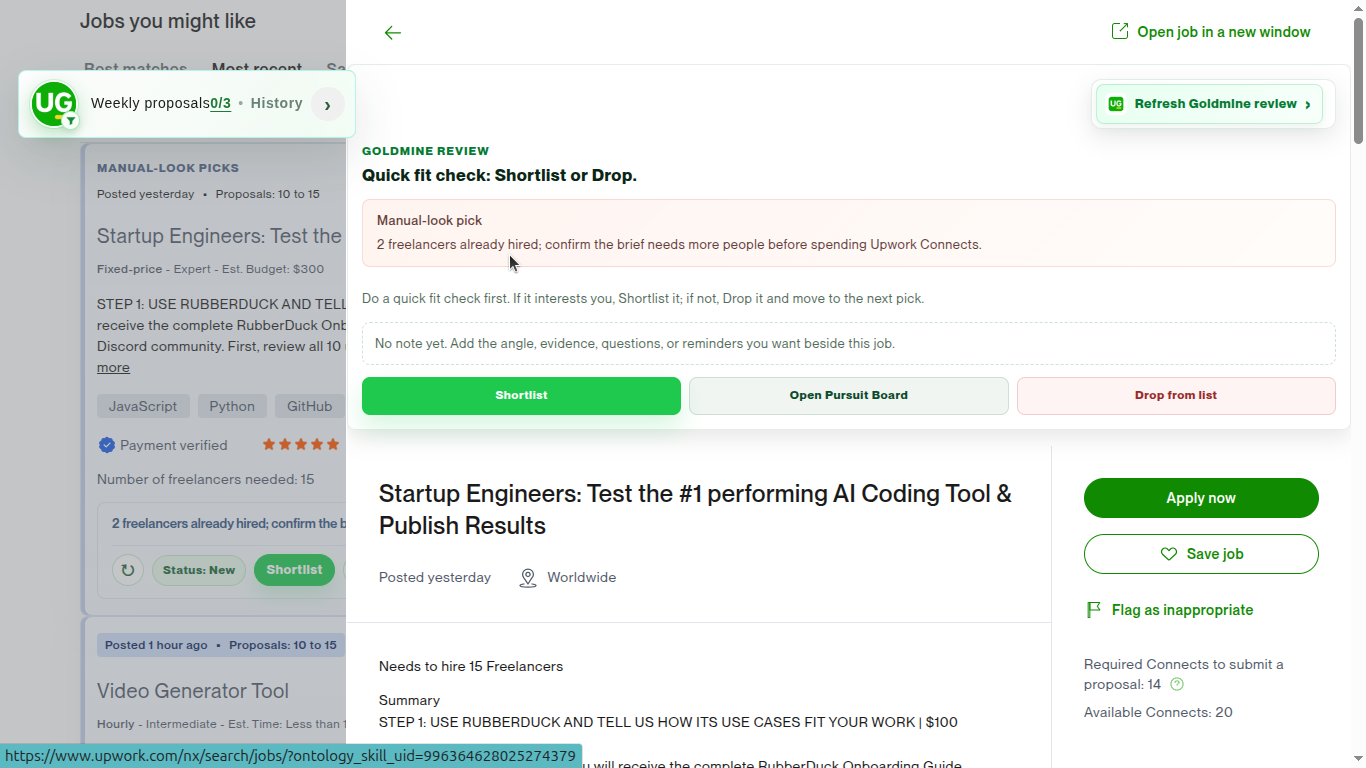
When a job catches your attention, look for the small round UG icon near the top-right of its card. You can use the same check when the job is already open.
Every UG review checks your Goldmine access before it starts. Signing in first keeps that check from interrupting your browsing flow.
- Sign in to Goldmine with your email OTP, then return to the Upwork tab.
- Click the UG icon on the job you want to review.
- Read the recommendation and its one-line reason, then Shortlist or Drop the job.
Optional page-level workflow
Filter the jobs visible on this page
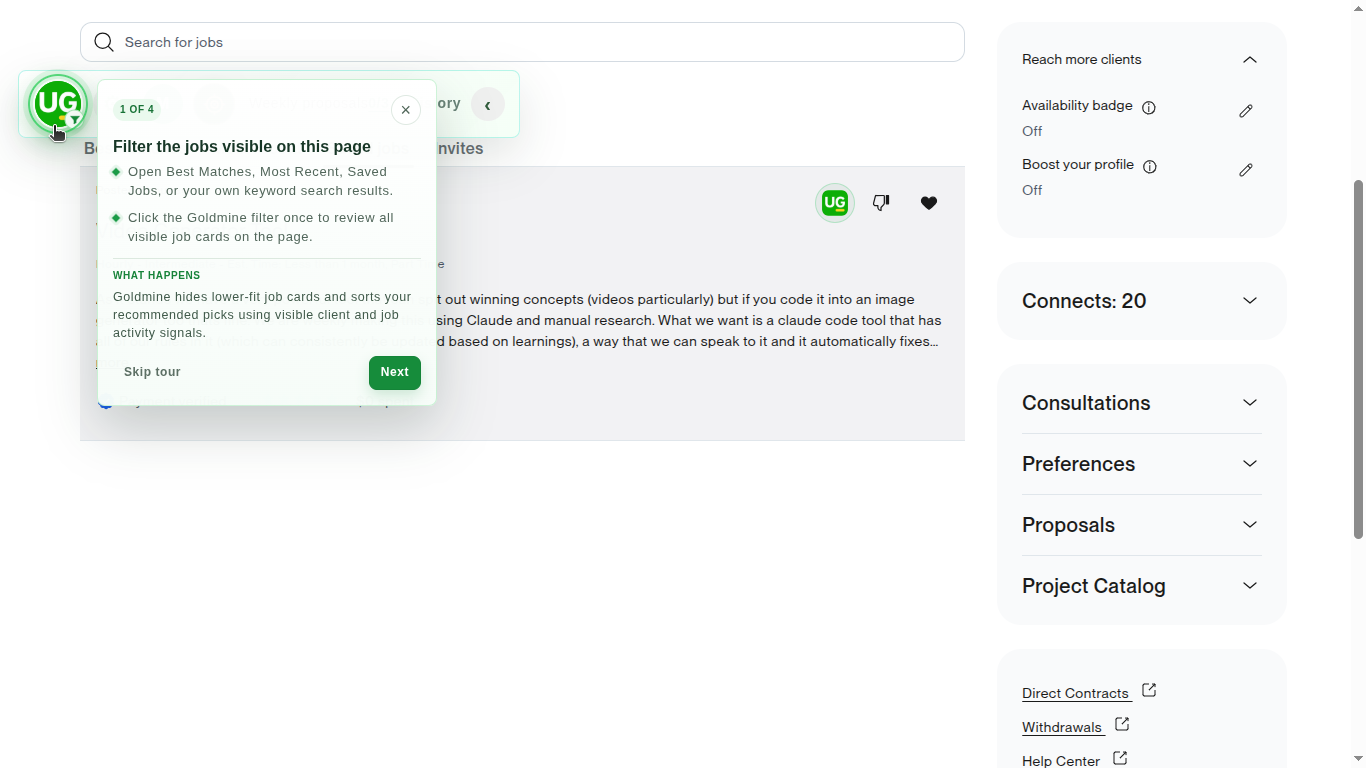
On Best Matches, Most Recent, Saved Jobs, or your own keyword search results, one click can review the job cards currently visible on the page. Goldmine hides lower-fit cards and sorts the recommended picks using available client and activity signals.
Best Matches is a quick starting point. On Most Recent, you can manually use Upwork's Load more control before starting Goldmine when you want a larger visible set. On standard keyword searches, Goldmine may set the page to show up to 50 results after you start the review.
- Open a supported job page and wait for its job cards to load.
- Use the Goldmine controls in Upwork's left sidebar. Choose the prominent UG filter icon once.
- Review the recommended jobs that remain, then Shortlist or Drop each one.
Sign in first: Goldmine requires you to be signed in. Complete the email OTP before starting for an uninterrupted review. If sign-in opens after you click UG, finish signing in, return to Upwork and click UG again.
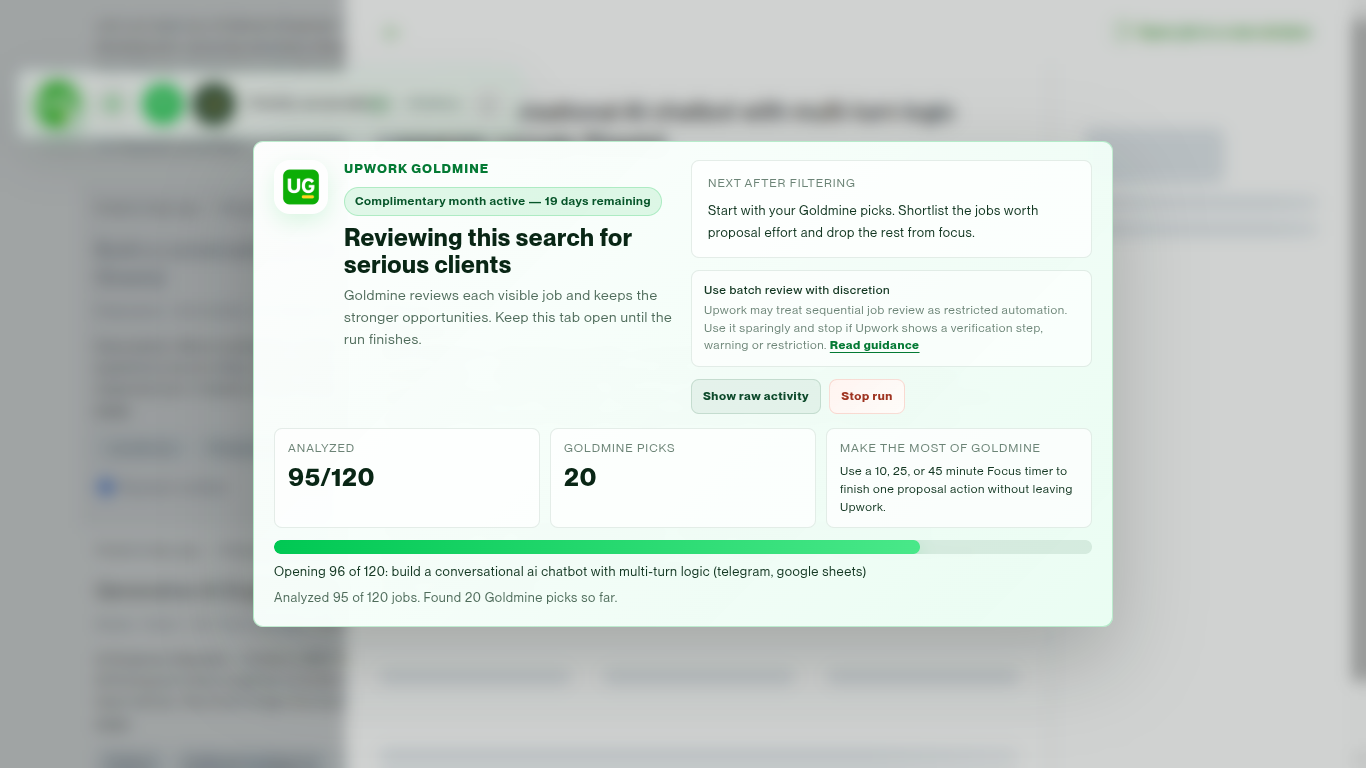
Keep the tab open: Keep the Upwork search tab open until the review finishes. You can follow its progress, stop the run, or resume after clearing a page issue.
Too few picks? Lower your Goldmine floors from Settings. Too many weak picks? Raise them. You can also apply any useful Upwork filter first when you want Goldmine to begin with a more specific visible set.
Missing a filter that would help? Choose Suggest a feature from the Pursuit Board's three-dot menu, or write to upwork-goldmine@muyal.online. We read every suggestion and use it to shape what Goldmine improves next.
- Stop ends the run.
- Show raw activity reveals the Upwork page activity behind the clean progress view.
- Resume continues only after you manually clear a page issue.
Goldmine does not bypass verification or security checks.
Your preferences
Set the floors that protect your time
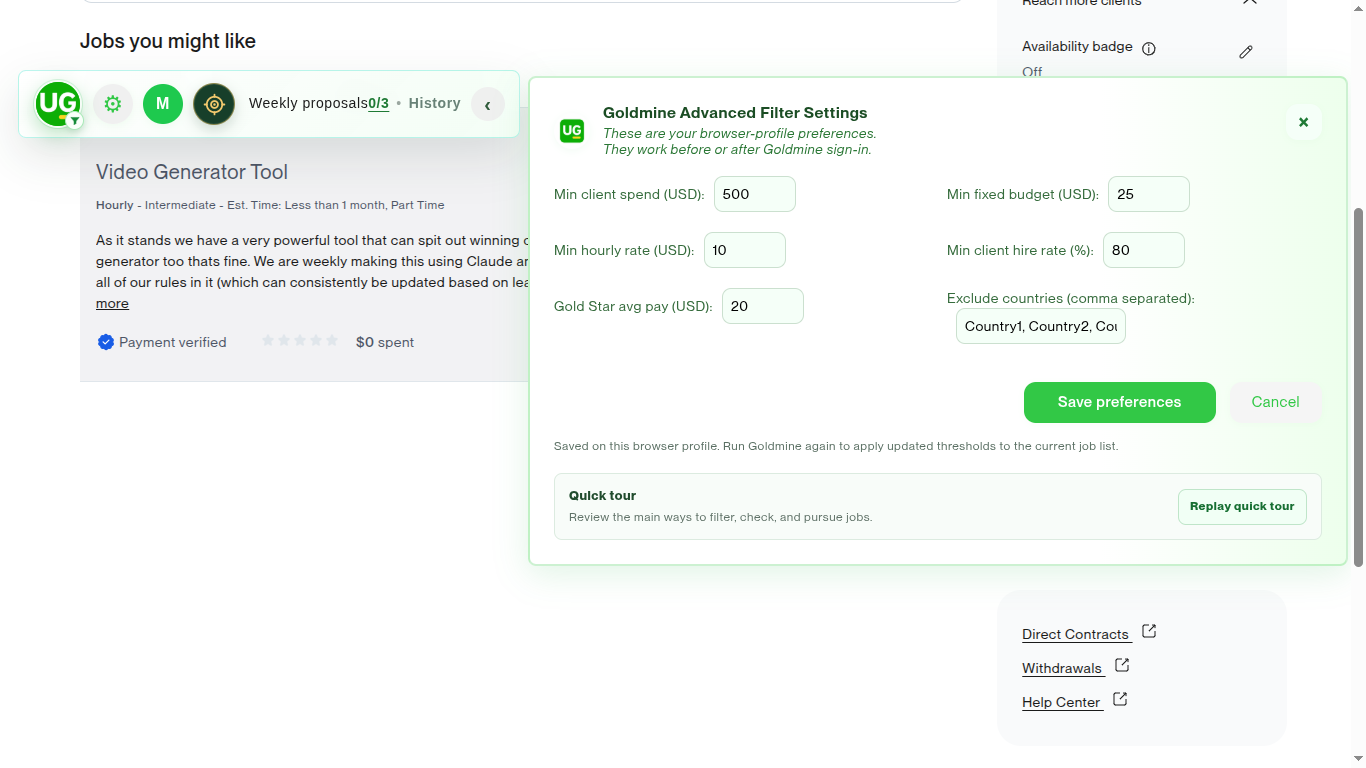
Open Goldmine Settings from the gear icon in Upwork's left sidebar. A floor is simply the minimum value you want a job or client to meet before Goldmine recommends it. Your settings are saved on this browser profile and apply the next time you run a review.
- Client spend
- The minimum visible client spend you want to consider.
- Fixed budget
- The minimum fixed-price budget worth reviewing.
- Hourly rate
- The minimum hourly rate you want the visible range to support.
- Hire rate
- The minimum client hire rate you normally expect.
- Gold Star average pay
- The visible average paid rate required for the Gold Star distinction.
- Excluded countries
- Countries you do not want included in your recommendations.
Decision language
Read the reason, then use your judgment
Every result gives you a recommendation and the strongest reason behind it, not another dashboard to interpret. Compare that reason with your skills, interest and proposal angle, then decide whether the job deserves your Connects. No recommendation guarantees an interview, contract, payment or client quality.
- Gold Star
- A stronger opportunity that also clears your Gold Star average-pay floor. Review these first when time is tight.
- Strong
- The visible job and client signals clear your saved floors. Review the complete job before spending Connects.
- Manual-Look
- One signal needs your judgment, but the visible context still makes a quick review worthwhile.
- Recommend reject
- A decisive concern or one of your saved floors was not met. Read the reason and move on unless your judgment says otherwise.
Follow-through
Keep one useful action in front of you
Finding a promising job is only half the work. The Pursuit Board keeps your shortlist, preparation notes, reminders and submission status beside Upwork, so a serious opportunity does not disappear into another tab, notebook or to-do app.
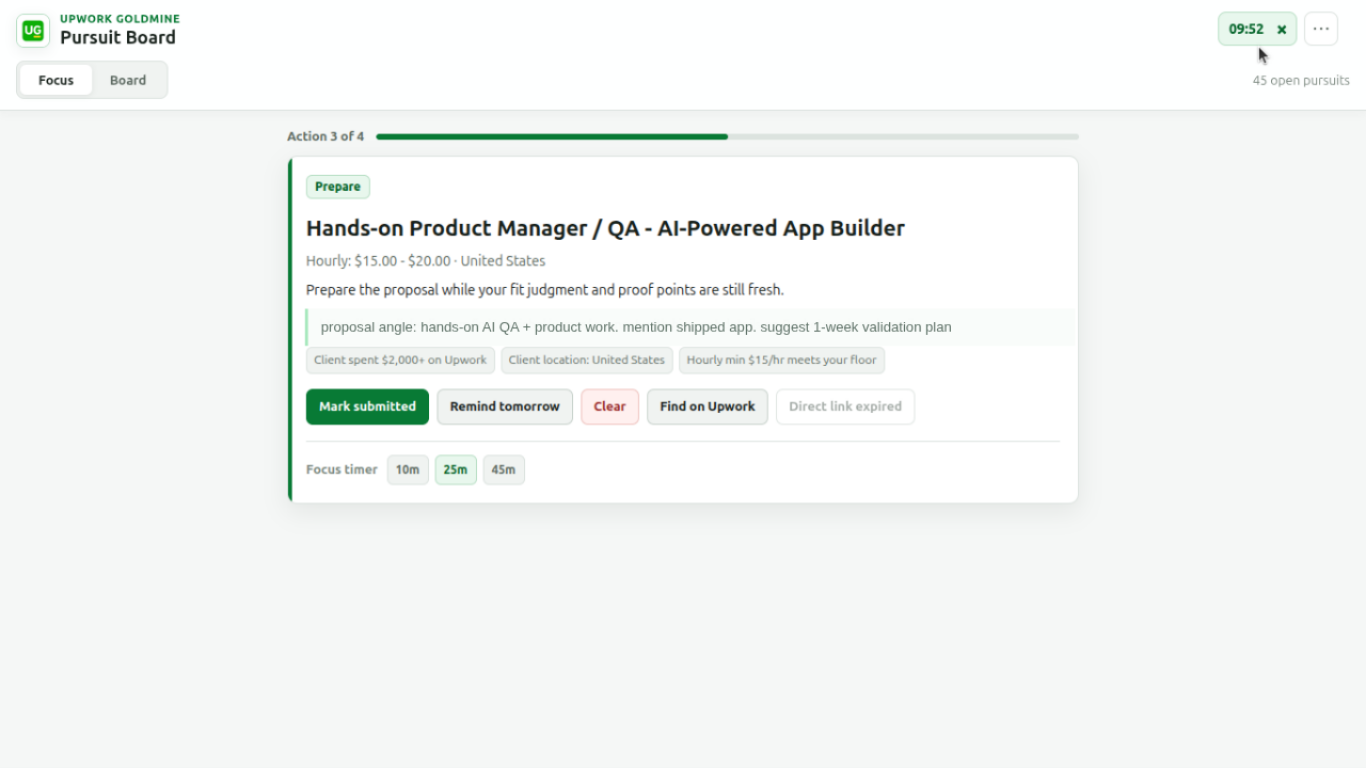
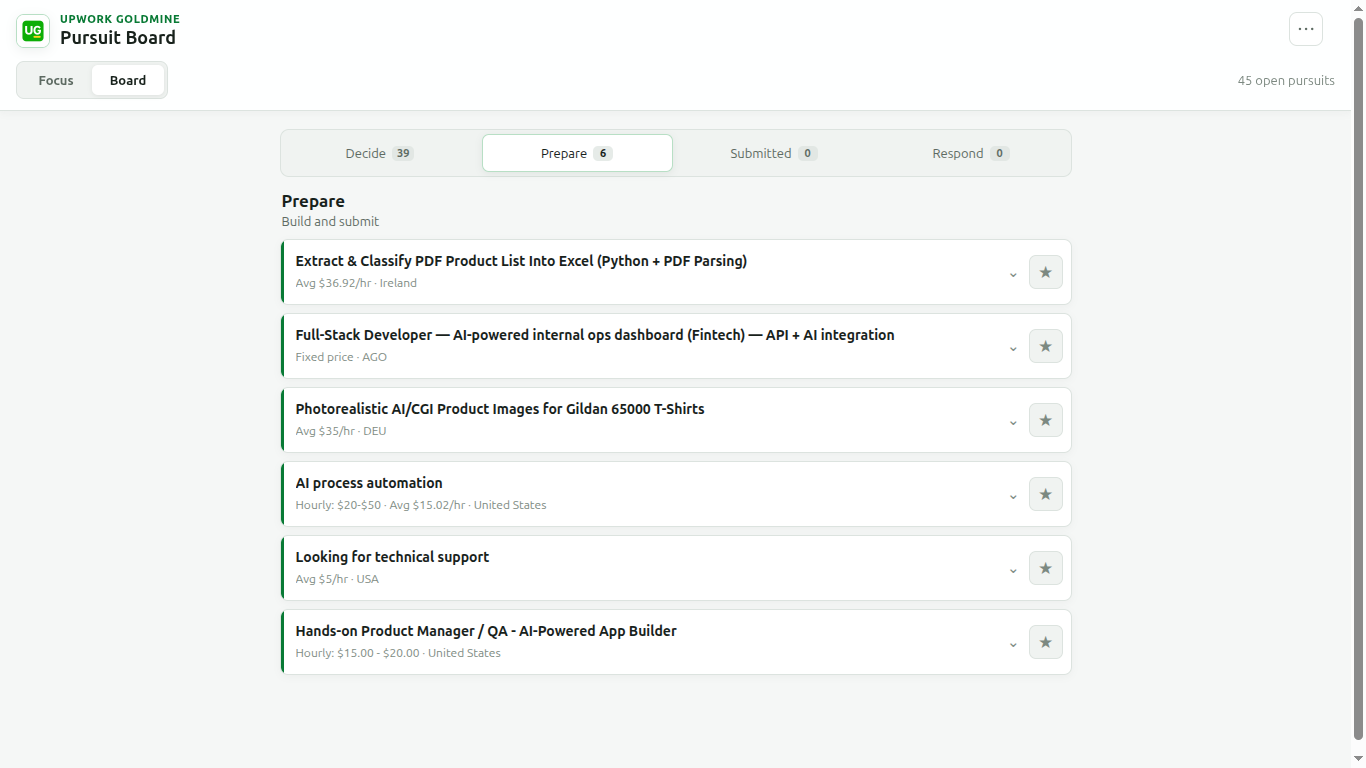
Use Focus when you want the next few useful actions without seeing the whole backlog. Use Board when you want to review every active pursuit by stage.
- Decide
- Shortlist the jobs worth pursuing and clear the rest before they consume more attention.
- Prepare
- Prioritize the shortlist and keep your proposal angle, proof points, questions and reminder beside each job.
- Submitted
- After submitting on Upwork, mark it here so you can stop checking repeatedly and focus on the next opportunity.
- Respond
- Move invitations and client responses here so the next follow-up stays visible while it is still timely.
- Cleared
- Remove stale or unsuitable pursuits from active focus without losing the record.
Focus rounds show up to four actions at a time. Snooze a job when the decision can wait, use the focus timer for uninterrupted proposal work, and clear an old undecided backlog in one step when those jobs are unlikely to be useful anymore.
Ownership and access
Your board remains visible and exportable
Sign in with the code sent to your email; there is no separate Goldmine password to remember. During an active trial, complimentary period or subscription, you can run reviews and edit the board. If access ends, your board remains visible and exportable as CSV, but becomes read-only.
Goldmine does not ask for your Upwork password and does not store card, UPI or bank credentials. Read the Privacy Policy for the exact data categories and processors.
When a page changes
Recover without forcing the page
- Goldmine sidebar controls missing: let the Upwork page finish loading, then refresh once. The filter, Settings, Pursuit Board and Profile controls appear in Upwork's left sidebar on supported pages.
- Upwork promotion is distracting: use the close button on the Boosted Proposals banner. Goldmine remembers that choice on this browser.
- Signed in but nothing happened: return to Upwork. If Chrome says the extension changed, refresh once and click UG again.
- Job did not open: close any job viewer already open, then click the UG icon again.
- Verification appears: complete it manually or stop. Goldmine does not bypass it.
- Batch paused: clear the visible obstruction, then Resume. Stop and restart if the page structure has changed.
- Old direct link fails: use Find on Upwork from the board. Direct links are intentionally treated as short-lived.
Include the job title, page section, screenshot and what you clicked when writing to upwork-goldmine@muyal.online.